


Posted: 12/4/2007 9:01:23 PM EDT
|
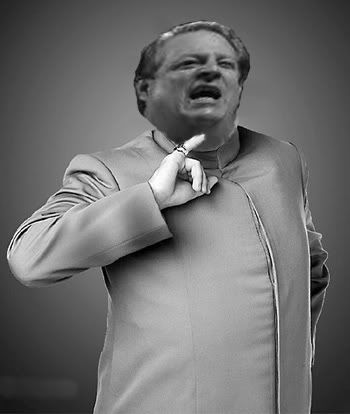
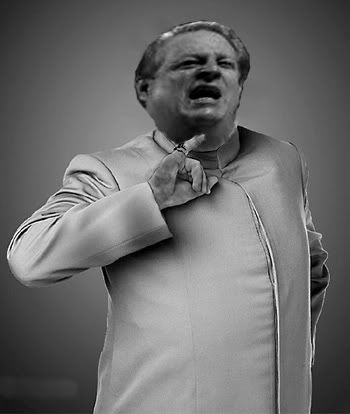
I have a speech due tomorrow and need Al Gores face put on this photo. I can do rough photochops, but I dont know how to put his head behind his finger. Feel free to do your worst to him. Mostly I just need a good chop with his finger in front of his face.  Best one gets 5 minutes in front of a class of 30 people, with copious amounts of college pie. 
|
|
1) Put the picture of Gore on a separate layer above the Dr's. Size Gore's layer so his head is the right size for going on the Dr's body. 2) Go to the Layer window. Near the bottom will be a button for adding a "Layer Mask". Select Gore's layer and hit that button. 3) You'll see a little box appear to the right of your layer thumbnail in the layer window. If you have the new box selected, you're editing the layer mask. 4) Using the paintbrush tool while editing the layer mask, black makes stuff disappear and white makes it come back. Just zoom in on Gore's picture, and carefully cut out everything you dont want with black. If you make a mistake, switch to white and paint over the mistake to make the original image come back. Simple.  Give a man a fish, he eats for a day. Teach a man to fish, he eats for life. |

I have GIMP, does it work the same? 
|
 Pretty good.... |
Probably, although I don't know what its layer mask function might look like. Just hunt around and see if you can find a feature similar to what I described. |
Thanks, I will try it out! |


That's a pretty good one but you need to dodge the skin a bit to lighten it up and match the lighting. |
Fantastic! Thanks! |


Thanks man, i really appreciate it.
|
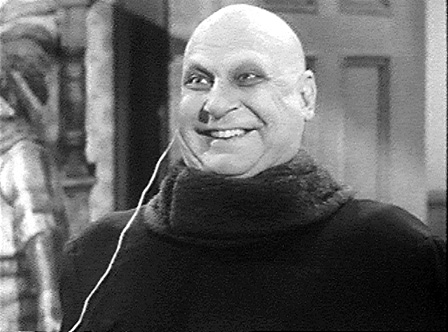


Why was the first thing I thought of when I saw your chop this? 
|